

As design trends come and go so fast, it’s easy for your website to start looking dated if you don’t update the design every couple of years or so. WordPress has made it easy to switch to a new theme without affecting the content of your site – you don’t have to spend days doing an elaborate switchover anymore.
However it’s still a good idea to plan properly for launching your redesign, particularly if you have a big site with a lot of traffic. Having a step-by-step plan to follow can minimize the chance of any problems occurring and help to ensure a smooth re-launch, with minimal downtime.
1. Backup Your Old Site
Before you do anything, it’s important to backup both your files and your WordPress database in case anything goes horribly wrong and you need to revert back to your original design.
Start by grabbing a copy of all your website files by connecting to your site via FTP and downloading all site files to your local computer.
The method for backing up your database will vary slightly depending on your webhost. The comprehensive guide at WordPress.org covers pretty much everything you need to know.
If you’re struggling, there are some plugins that can help you out. I’d recommend WordPress Duplicator as it makes it easy to create a copy of your site for testing purposes (see step 3 below). Another premium backup plugin worth looking into is BackupBuddy ($80 for up to 2 sites).
If you don’t want to get your hands dirty doing backups, then consider a managed service to do it for you. VaultPress starts from $5 a month and performs automatic daily backups via a plugin. These backup services can also come in very handy if your site is ever hacked or you want to move to a new server.
- Easily Backup Your Site with These 9 Top Backup WordPress Plugins
- How to Backup Your WordPress Blog Using BackupBuddy Plugin
2. Clean up Your Site
Launching a re-design is a great opportunity to clean up your site by fixing broken links, deleting spam comments and clearing out old plugins and themes.
Start by deleting any plugins and themes you’re not using. Every plugin you install is a potential weak point for your site so to ensure maximum defense against hackers, keep your plugin use minimal and make sure you update to new versions as soon as they are available. You should also make sure you’re using the latest version of WordPress.
Optimize your database to clear out unused data and speed up your site. The WP-DBManager plugin will do this for you nicely.
Akismet is a decent anti-spam plugin but if you’ve been lazy about letting spam through in the first place, it might take you a while to delete all the old comments. You can speed up the process by editing your screen options to display more comments per page, or by manually going into the database and running a PHP command to bulk-delete comments. There’s also a handy plugin for doing this of course!
Fix broken links easily with the Broken Link Checker plugin.
Consider installing a couple of security plugins to harden your WordPress installation if you haven’t already. All In One WP Security & Firewall is a great plugin that will protect your site from a number of different attacks. The Sucuri SiteCheck plugin is also handy for scanning your site for malware and alerting you if your site is compromised.
After cleaning up your site, back it up again.
3. Install Your New Theme on a Test Site
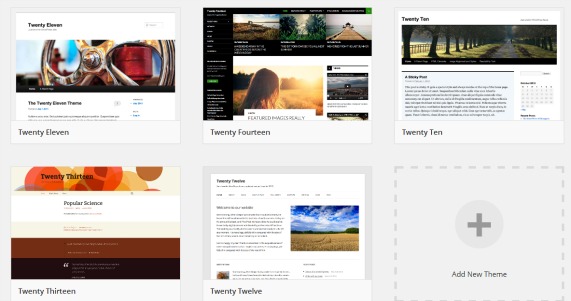
It’s always best to install a new WordPress site for testing before you switch to a new theme or do any big changes to your site. Test sites are also handy for checking out plugins and widgets without putting your website at risk.
To setup a website you can either install WordPress locally on your own computer (which requires a bit more technical skill and effort) or you can simply install a new instance of WordPress into a sub-folder of your domain on your normal hosting account. If you choose to do this, make sure to select the option to discourage search engines from visiting the site, found in settings > reading. You can protect it further by using the WP Maintenance Mode plugin to block non-logged-in visitors from viewing the site
Ideally, your test site should be exactly the same as your live site – a theme on a fresh install of WordPress may work fine but when it comes to installing it on your actual site, there’s a chance it may conflict with a plugin or have some other problem.
To duplicate your site on your test installation you’ll need to import the database you saved in step 1 and upload all relevant content files. This can get a little tricky but the most hassle-free way I’ve found of doing it is by using the WordPress Duplicator plugin I mentioned in step 1. I’ll be writing a detailed tutorial on how to use this plugin in another article.
4. Check Your Test Site
After setting up your test site, check that all the plugins you use are installed and activate before activating your new theme. You should then methodically go through every section of your site to check everything is working as expected.
If you use featured images on your posts, it’s highly likely that your new design will not use the same image sizes as your previous design. You can rebuild your thumbnails with the Regenerate Thumbnails plugin.
Some themes come with custom page templates and if you wish to use for some of your pages, you’ll need to go into each page to change the template manually. If you want to apply this change in bulk, it’s easier to do via the pages screen.
If your new theme has settings within the dashboard, make sure you make a note of what you change so that you can do the same on the live site. Some themes let you export and import settings, which is a good option if it’s available.
5. Activate New Theme on Live Site
If your new design works perfectly on your test site, or there are only a couple of tweaks you need to make, go ahead and activate it on your live site. Remember to import or change any settings you made on the test site. Then go through the site again and make sure everything is working on the live version.
For making more extensive edits or the Regenerate Thumbnails plugin took a few hours to do its job because you have a lot of images, you’ll probably want to block access to your site temporarily.
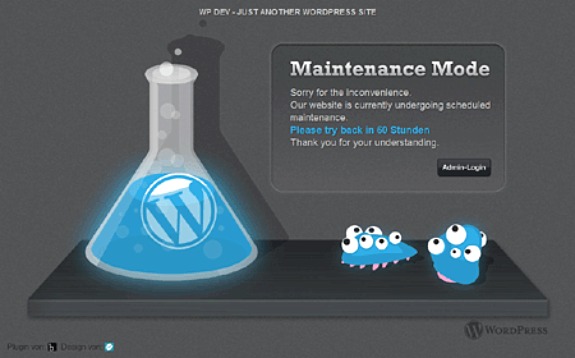
Use the WP Maintenance Mode plugin to let your users know that your site is down while you upgrade. You can even put a countdown on this to indicate when the site should be fully functional again. Remember to deactivate the plugin once you’ve finished editing and testing.
6. Post About Your Redesign
Congratulations! You’ve successfully launched a redesign! Make sure you let your readers know about the change and include a screenshot of how it should look. Readers who view your site through an RSS reader won’t see your new design unless you tell them about it.
Sometimes browser caches can cause your new design not to load or only partly load. If this is the case for some of your readers, instructing them to refresh the page or clear their cache should solve the problem.
It’s Easier Than it Sounds!
It may sound like a whole lot of hassle to change your WordPress theme but in fact most of the advice given here is just a precaution in case of something going wrong. In the vast majority of cases, you can just select your new theme from the dashboard and go on your merry way. For smaller sites, you may well want to try this strategy, but for bigger sites I’d definitely advise backing up and following a more formal launch as detailed above.
If you have any handy tips, tools or plugins for launching a WordPress redesign, please share them in the comments.








I love WordPress Redesigns. In fact it is part of my target market. Over the last year design trends have changed greatly. When Google started ranking mobile friendly sites for mobile devices back in April I got an influx of calls. I could not believe people were still running sites on WordPress 1.5