

Every time, I had to transfer a site from one server to another, I either used plugins such as Duplicator or Backup Buddy, or did it manually. It involved taking backups, manually copying the media files, uploading database, among other things, and took around 30 minutes or more depending on the size of the site. While this works, I think it’s unnecessarily and complicated process, especially if you are transferring a small site.
The WordPress plugins repository has a nifty little plugin that lets you easily export content into another website using an XML file. The plugin is called WordPress Importer. It can move:
- Posts, pages, and custom post types
- Categories, tags, and taxonomies
- Comments (including approved, pending, scam, and trash comments)
- Full Information of Authors
In nutshell, you can move everything that is saved in your database even custom fields and post meta info. Though, there are a few things that you won’t be able to move with this plugin:
- Themes and Plugins
- Attachment or media files
I used the plugin most recently to move my design blog from BlueHost to Media Temple.
This process takes only a couple of minutes and doesn’t require any technical knowledge. I think this plugin is perfect for moving small sites that doesn’t have hundreds of posts and pages.
In this article, I will walk you through the process of exporting and importing your content from one WordPress website to another. Before we start, I strongly suggest that you back your site, so that you can easily restore if something goes wrong.
Exporting Your Content
The core version of WordPress has a built-in Export feature. You can find that under the Tools section (Dashboard > Tools > Export).
There are three main options: All Content, Posts, and Pages. Rest of the options listed below were result of the two plugins that I was using.
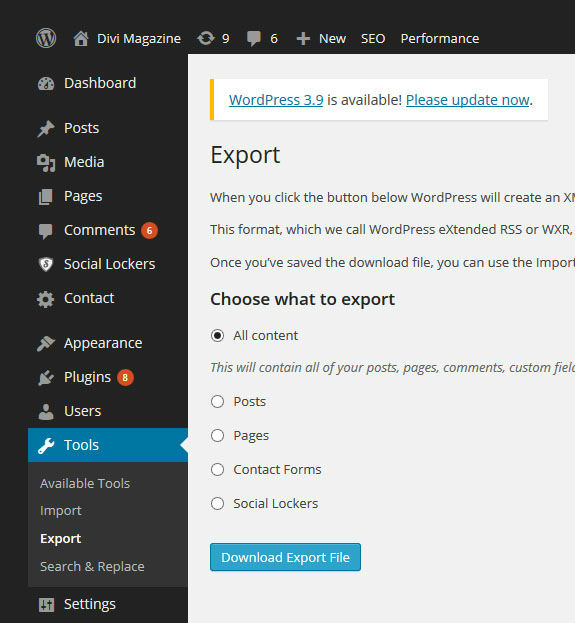
The export function also lists any other custom post types and taxonomies that your websites uses. For Example, here on WPKube, we use a number of premium and custom plugins, which as you can imagine adds custom post type and taxonomies. Therefore, WordPress gives you an option of exporting the custom post type content along with the post and pages to another website.
Apart from that, you can also filter the content that you want to move, for example, you can filter the posts by categories, authors, date range, and status of the post.
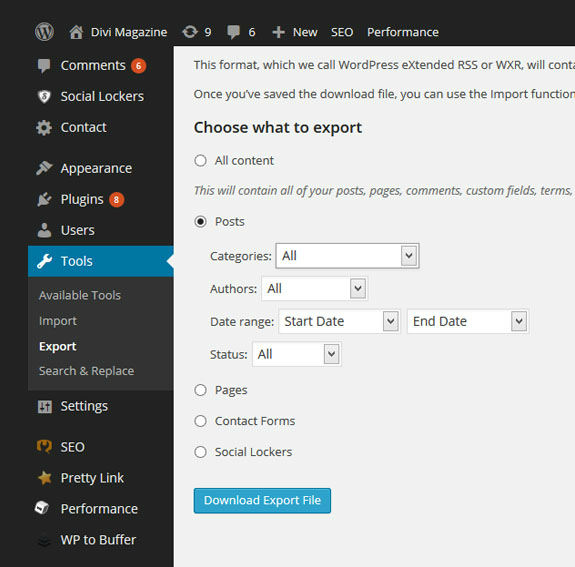
Once you have decided which posts and pages to export, click the “Download Export File” button. It will take several seconds or minutes depending on the size of the file.
Import the XML File to Another Site
Import feature can be found in the Tools section, but it doesn’t come built-in the core functionality. This is mainly due to so many options platforms (Blogger, LiveJournal, Tumblr, etc) available for users to choose from.
You can either install the WordPress Import plugin manually by downloading from the official WordPress directory or by using the one click install option from the Import page. The later one is the more practical approach as it will not take more then a couple of seconds.
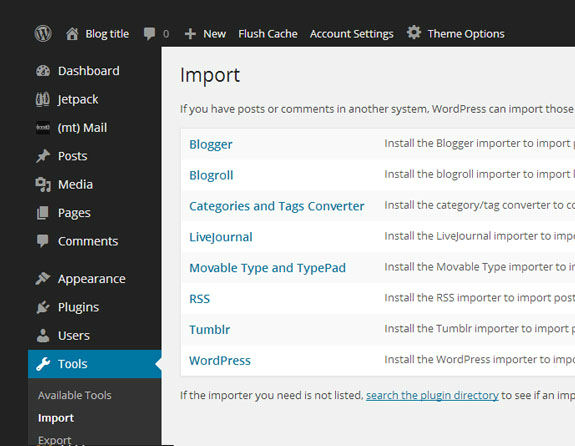
To install the plugin from Import page, click on the WordPress link and it will bring up a popup box that allows you to install plugin directly from the dashboard area.
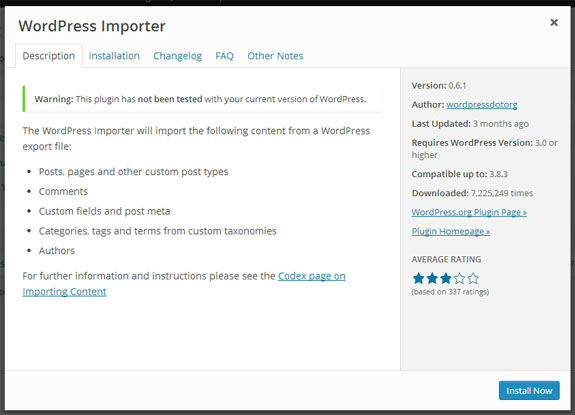
Once you have installed the plugin, you will be taken to the import page, where you can upload the XML file, you exported from your previous site.
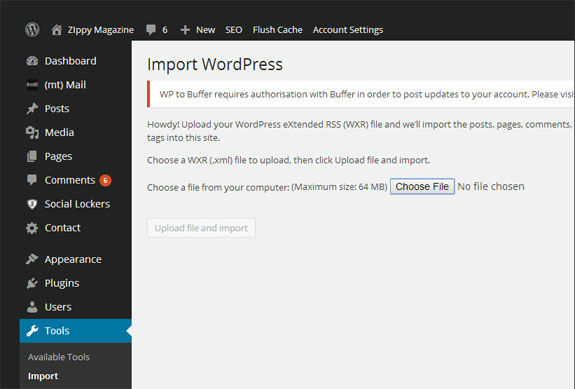
As soon you click the “upload file and import” button, you will be given the option to assign imported authors to existing authors on your website. Or you can just let it create new accounts for the authors. This can be a useful feature if both the sites has same authors.
You will also be given an option to import all the images that are attached to the posts.
Over To You
Now this was not a perfect solution, but it did the job. However, there were number of issues that I run into. For Example, it didn’t imported the attachments, so I had to manually download the media files from old server and upload it to the new site.
You should also be aware that you might run into issues, if you are uploading a bigger file as many hosting companies sets a limit on the size of the file you can upload through your website. Alternatively, you can change the limit by modifying functions.php or .htaccess file.
After completing the transfer, you can use Search and Replace plugin to replace all the references of your previous site or url.
Lastly, should any part of the process goes wrong, you can easily restore the importing website using the backup you made earlier. I hope you enjoyed this tutorial, and if you have any questions, please let us know in the comments below.








You know what, you have a good point. This is a lot simpler for small sites.
Unfortunately the Importer doesn’t handle widgets but the Widget Importer & Exporter plugin can help with that: http://wordpress.org/plugins/widget-importer-exporter/
My favorite plugin for updating URLs is Velvet Blues Update URLs: http://wordpress.org/plugins/velvet-blues-update-urls/. It will be perfect when it is able to replace URL’s used in widgets
Does Search and Replace affect widgets?
How could I forget about the widgets? I always had to manually copy them on to the new site, thanks for pointing me in the right direction. I think many other WordPress users will that plugin useful.
I will keep the Widget Importer Exporter plugin in mind, when transferring sites in future.
I never tried that plugin, but it looks like a great option. Personally, I prefer Search & Replace over others, as it replaces every single reference of your old site from the database (including old data from widgets).
Hey Devesh, I have written a blog where I have defined about how to migrate your WordPress website from one place to another without issues. It is a simple 5 steps process with images. Complete process that will migrate your website including widgets, themes, plugins and data. Have a look and let me know your reviews. 🙂
Here is the blog: http://www.cloudways.com/blog/migrate-wordpress-to-another-host/
Hi Devesh,
When it is required to import the content from one website to another we face lots of problem. The way you have described is easy to use and effective to response.
This will help many beginners.
But may I know about doing backup of our WordPress database if required in this session.
Actually I have faced problem in that. Hope I can fix it soon.
Thanks for sharing.
~Ravi
Glad to hear that, Ravi.
Yes, backup of your WordPress database is essential, and you can easily do that via Duplicator plugin.
I import all content but when i open my website its show “database error”. Now what to do?? please ans me
It seems something went wrong when you imported the data. Are you still getting the database error?
Very nice post here. It’s really help me a lot. I actually was searching this type of article for my blog. Finally, i got it and really helped me a lot. Thanks for sharing such a wonderful tips here.
Hi But images still from the other domain how can i solve this
i want image from my current domain